Inspector Overlay & Base-Call Warnings
DxMessaging ships a Roslyn analyzer and a companion Unity Inspector overlay that catch the most common authoring mistake when subclassing MessageAwareComponent: forgetting to call base.OnEnable() (and friends) in your override. Without those base calls the messaging system does nothing -- every handler you registered silently fails to fire. This page is the user-facing tour of how the package surfaces the problem and how you fix it.
This guide covers when warnings appear, what the Inspector HelpBox looks like, the three actions it offers, the Project Settings panel, and the manual rescan menu. For the full reference -- every diagnostic id, exact detection policy, suppression precedence, and Unity 2021 setup notes -- see Roslyn Analyzers & Diagnostics.
When a Warning Appears
Whenever your code triggers one of the base-call diagnostics (DXMSG006, DXMSG007, DXMSG009, or DXMSG010), two things happen in parallel:
- At compile time, the Roslyn analyzer (
WallstopStudios.DxMessaging.Analyzer.dll, shipped underEditor/Analyzers/) emits a warning into Unity's Console with the correspondingDXMSG###id and a message that names the offending type and method. - At Inspector time, the overlay reads the cached scan from
Library/DxMessaging/baseCallReport.jsonand renders a HelpBox at the very top of everyMessageAwareComponentsubclass's Inspector that has at least one missing base call.
You see both surfaces by default. The Console warning is authoritative for CI builds (the analyzer is registered for the C# compiler via csc.rsp, so it runs on every Unity-driven compile); the Inspector overlay is the in-Editor reminder you cannot ignore while wiring a prefab.
Tip
Severity is per-project tunable. Add lines like dotnet_diagnostic.DXMSG006.severity = error to your .editorconfig to upgrade missing base calls into a build break, or severity = none to silence one project-wide. See Suppression precedence for the full ordering.
The HelpBox
When the overlay decides to render, it draws a single Unity HelpBox above your component's Inspector body, followed by a horizontal row of action buttons.
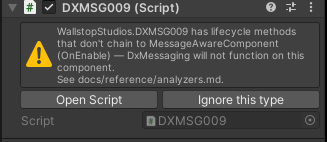
The text follows this shape:
<FullyQualifiedTypeName>has lifecycle methods that don't chain to MessageAwareComponent (<comma-separated method list>) -- DxMessaging will not function on this component. See docs/reference/analyzers.md.
When the cache is stale (immediately after a domain reload, before the first post-reload scan completes), the message above is followed by a trailing (cached from previous session -- refreshing...) line on a new paragraph -- see Cached-from-previous-session annotation below.
<comma-separated method list> is taken straight from the analyzer's per-type report -- typically one of Awake, OnEnable, OnDisable, OnDestroy, or RegisterMessageHandlers. A single component can list multiple methods if more than one override is broken.
Cached-from-previous-session annotation
After a domain reload -- when you enter Play Mode, recompile, or open the Editor -- the overlay needs a moment to rebuild its scan. Rather than flashing an empty Inspector and then suddenly showing a warning, the package eagerly loads the previous session's cache from Library/DxMessaging/baseCallReport.json so the HelpBox is visible immediately.
While that cached data is being refreshed, the HelpBox annotates the trailing line of its message with (cached from previous session -- refreshing...).
Once the first post-reload scan completes (typically within a single editor tick after assembly reload completes), the harvester flips its IsFreshThisSession flag and the suffix disappears. You do not need to do anything -- the Inspector repaints automatically. The annotation exists so you understand the data is from the previous session in the unlikely event you have just edited the offending source code and the Inspector is showing a warning that the latest compile would have fixed.
Three Inspector Actions
Below the HelpBox the overlay draws a horizontal action row. The buttons that appear depend on whether the component's fully-qualified type name is currently in the project ignore list.
Default (warning) state
When the component is not ignored, you see two buttons:
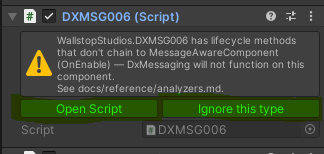
- Open Script -- opens the offending component's source file at the top; when the legacy console bridge is enabled and a line number is available, the file opens at that line.
- Ignore this type -- appends the component's fully-qualified type name to
Assets/Editor/DxMessaging.BaseCallIgnore.txt. The next Inspector repaint flips the HelpBox into its info shape (below). The mutation is deferred to the next editor frame so the current GUI cycle completes cleanly -- there is no perceptible delay.
Ignored state
When the component is in the ignore list, the HelpBox is the blue info shape -- the analyzer noticed this would normally be a problem, but you have explicitly opted out -- and the action row collapses to a single button:
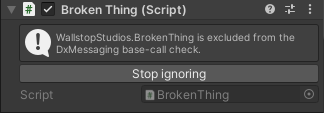
- Stop ignoring -- removes the component's fully-qualified type name from the ignore list. On the next frame the HelpBox flips back to its warning shape if the underlying analyzer warnings still apply.
Warning
Adding a type to the ignore list silences the overlay, but it does not change the runtime behaviour. If the override genuinely never reaches base.OnEnable(), the messaging system on that component is still dead. The compile-time analyzer also continues to emit DXMSG006/007/009/010 to the Console unless you suppress them via .editorconfig (see Suppression precedence). For finer-grained control, the source-level [DxMessaging.Core.Attributes.DxIgnoreMissingBaseCall] attribute suppresses the analyzer at the class or method level and is checked before the project ignore list -- see the Suppression precedence ordering for the full priority. Use either suppression path only when the silencing is genuinely intentional (for example, a deliberate adapter that should not participate in messaging) and document the reason somewhere your team can find it.
Project Settings Panel
The package registers a Project Settings page under Project Settings > Wallstop Studios > DxMessaging. The currently-rendered controls are:
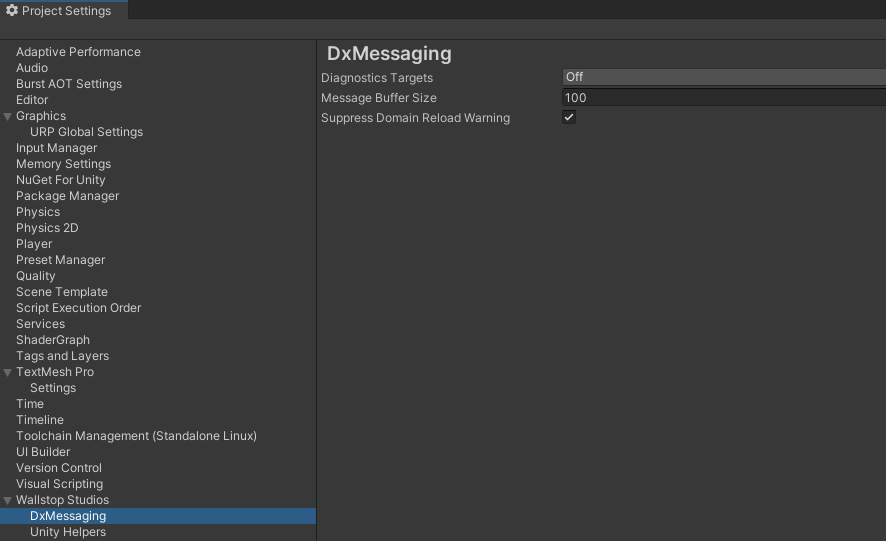
- Diagnostics Targets -- flags-enum field (
Off,Editor,Runtime,All) controlling where global diagnostics are enabled. See Diagnostics for what this toggle activates. - Message Buffer Size -- integer; the default ring-buffer size used by every newly-created bus and token when diagnostics are active. Defaults to
IMessageBus.DefaultMessageBufferSize. - Suppress Domain Reload Warning -- checkbox; disables the warning Unity shows when "Enter Play Mode Options" skips a domain reload. DxMessaging still resets its statics, so the warning is noise on most projects.
The settings asset itself lives at Assets/Editor/DxMessagingSettings.asset and stores additional fields the overlay relies on:
- The master toggle for the base-call check, exposed on the asset Inspector field
DxMessagingSettings.BaseCallCheckEnabled. Whenfalse, the overlay is silenced; the underlying analyzer still emits the Console warning unless.editorconfigsays otherwise. - The project ignore list (
DxMessagingSettings.BaseCallIgnoredTypes), edited from the asset Inspector atAssets/Editor/DxMessagingSettings.asset(the Project Settings panel does not currently expose the ignore list). Mirrored to the sidecarAssets/Editor/DxMessaging.BaseCallIgnore.txtthat the analyzer reads viacsc.rsp's-additionalfile:switch. - An opt-in legacy console-scrape bridge, exposed on the asset Inspector field
DxMessagingSettings.UseConsoleBridge, that augments the IL-reflection scanner's snapshot with warnings harvested from Unity'sLogEntriesstore. Default off.
Note
The Inspector overlay's Ignore this type / Stop ignoring buttons read and write the same ignore-list field that the settings asset exposes. You can also bulk-edit the list directly from the asset Inspector.
For the field-by-field semantics -- including the ScriptableObject behaviour around OnValidate regenerating the sidecar -- see Inspector integration in the analyzer reference.
Tools > Wallstop Studios > DxMessaging > Rescan Base-Call Warnings
The package adds a manual rescan menu entry:
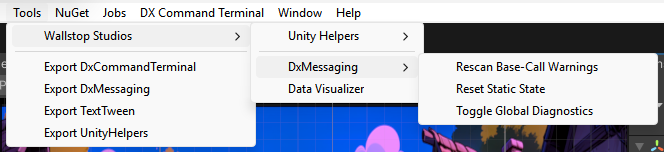
Click Tools > Wallstop Studios > DxMessaging > Rescan Base-Call Warnings to re-run the harvester on demand. You normally do not need to invoke this -- the package re-scans automatically on every assembly reload and after every per-assembly compilation event -- but it is useful when you have just toggled the master setting, edited the ignore list outside of Unity, or want to confirm that a fix has cleared a warning before the next domain reload.
The rescan is a no-op while Unity is mid-compile or mid-import; the menu entry is a no-op when the harvester is mid-compile and reschedules itself for the next safe tick.
Worked Example
Let's walk through the most common case end-to-end. Suppose you have a HealthComponent that derives from MessageAwareComponent:
using DxMessaging.Unity;
using DxMessaging.Core.Messages;
using UnityEngine;

public sealed class HealthComponent : MessageAwareComponent
{
    protected override void OnEnable()
    {
        // Forgot base.OnEnable() -- Token.Enable() never runs,
        // every handler this component registered is dead.
        Debug.Log("HealthComponent enabled");
    }

    protected override void RegisterMessageHandlers()
    {
        base.RegisterMessageHandlers();
        _ = Token.RegisterComponentTargeted<TookDamage>(this, OnHit);
    }

    private void OnHit(ref TookDamage m) => Debug.Log($"hit for {m.amount}");
}
What you see
After the next compile, the Console shows a DXMSG006 warning naming Game.HealthComponent.OnEnable. When you click into a GameObject that has HealthComponent attached, the Inspector renders the overlay HelpBox at the top of the component:
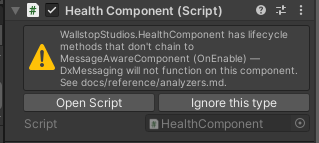
The HelpBox names OnEnable in its missing-method list and points you at the analyzer reference. Open Script jumps you to the offending override.
Fixing it
Add the base call:
protected override void OnEnable()
{
    base.OnEnable();   // <-- the fix
    Debug.Log("HealthComponent enabled");
}
After the next compile (or Tools > Wallstop Studios > DxMessaging > Rescan Base-Call Warnings), the HelpBox disappears and the DXMSG006 Console entry is gone:

That is the entire loop: warning > fix > silence.
When the fix is intentional
If your override genuinely needs to skip the base implementation, or your fix delegates the base call into a helper method (a known false positive of the textual matcher -- see Detection policy (good-faith textual match)), suppress the analyzer at the class or method level with [DxIgnoreMissingBaseCall]:
using DxMessaging.Core.Attributes;

public sealed class FlashyComponent : MessageAwareComponent
{
    [DxIgnoreMissingBaseCall]
    protected override void Awake() => CallHelperThatChainsToBase();

    private void CallHelperThatChainsToBase() => base.Awake();
}
Each suppression emits an audit-only DXMSG008 so the opt-out shows up in your build report.
Related
- Roslyn Analyzers & Diagnostics -- every diagnostic id, the suppression-precedence ordering, and the Unity 2021 setup notes.
- Unity Integration -- the inheritance contract the analyzer enforces and the recommended
MessageAwareComponentpatterns. - Diagnostics -- diagnostics targets, registration logging, and emission history.
- Troubleshooting -- runtime symptoms ("my handler never fires") and how they map back to base-call mistakes.