Unity Helpers
Treasure chest of Unity developer tools. Professional inspector tooling, high-performance utilities, spatial queries, and 20+ editor tools.
Inspector Grouping Attributes
Organize your inspector without writing custom editors.
Unity Helpers provides powerful grouping attributes that create boxed sections and collapsible foldouts with zero boilerplate. These attributes rival commercial tools like Odin Inspector while offering unique features like auto-inclusion.
Table of Contents
WGroup & WGroupEnd
Creates boxed inspector sections with optional collapsible headers and automatic field inclusion.
⚠️ Important:
[WGroupEnd]must be placed on the last field you want included in the group. The field with[WGroupEnd]IS included in the group, and then the group closes for subsequent fields.
Basic Usage
using UnityEngine;
using WallstopStudios.UnityHelpers.Core.Attributes;

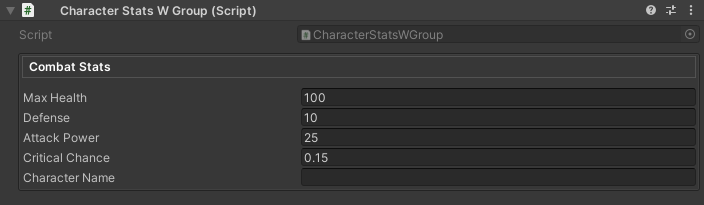
public class CharacterStatsWGroup : MonoBehaviour
{
    // Simple box with 4 fields
    [WGroup("combat", "Combat Stats")]
    public float maxHealth = 100f;
    public float defense = 10f;
    public float attackPower = 25f;
    [WGroupEnd("combat")]  // criticalChance IS included, then group closes
    public float criticalChance = 0.15f;

    public string characterName; // Not in group (comes after WGroupEnd)
}
Parameters
[WGroup(
    string groupName,                    // Required: Unique identifier
    string displayName = null,           // Optional: Header text (defaults to groupName)
    int autoIncludeCount = UseGlobalAutoInclude,  // Auto-include N fields (or use global setting)
    bool collapsible = false,            // Enable foldout behavior
    bool startCollapsed = false,         // Initial collapsed state
    bool hideHeader = false,             // Draw body without header bar
    string parentGroup = null            // Optional: Nest inside another group
)]
💡 Use the optional
CollapseBehaviornamed argument (orstartCollapsed: true) to override the project-wide default configured under Project Settings ▸ Wallstop Studios ▸ Unity Helpers ▸ Start WGroups Collapsed. Example:[WGroup( "advanced", collapsible: true, CollapseBehavior = WGroupAttribute.WGroupCollapseBehavior.ForceExpanded )]
CollapseBehavior options:
UseProjectSetting(default) – defers to the Unity Helpers project setting.ForceExpanded– always starts expanded.ForceCollapsed– always starts collapsed (equivalent tostartCollapsed: true).
Auto-Inclusion Modes
1. Explicit Count
[WGroup("items", "Inventory", autoIncludeCount: 3)]
public GameObject weapon;     // Field 1: in group
public GameObject armor;      // Field 2: in group (auto-included)
[WGroupEnd("items")]          // accessory IS included (field 3), then group closes
public GameObject accessory;  // Field 3: in group (last field)

public int gold;  // NOT in group (comes after WGroupEnd)
2. Infinite Auto-Include
[WGroup("settings", "Settings", autoIncludeCount: WGroupAttribute.InfiniteAutoInclude)]
public bool enableSound;   // In group
public bool enableMusic;   // In group (auto-included)
public float volume;       // In group (auto-included)
// ... 20 more fields ...  // All auto-included
[WGroupEnd("settings")]    // lastField IS included, then group closes
public bool lastField;     // In group (last field)

public int outsideGroup;   // NOT in group (comes after WGroupEnd)
3. Global Default
// Uses WGroupAutoIncludeRowCount from ProjectSettings/UnityHelpersSettings.asset (default: 4)
[WGroup("stats", "Stats")]  // autoIncludeCount defaults to UseGlobalAutoInclude
public int strength;        // Field 1: in group
public int intelligence;    // Field 2: in group (auto-included)
public int agility;         // Field 3: in group (auto-included)
[WGroupEnd("stats")]        // luck IS included (field 4), then group closes
public int luck;            // Field 4: in group (last field)
Collapsible Groups
using UnityEngine;
using WallstopStudios.UnityHelpers.Core.Attributes;

public class WGroupEndExample : MonoBehaviour
{
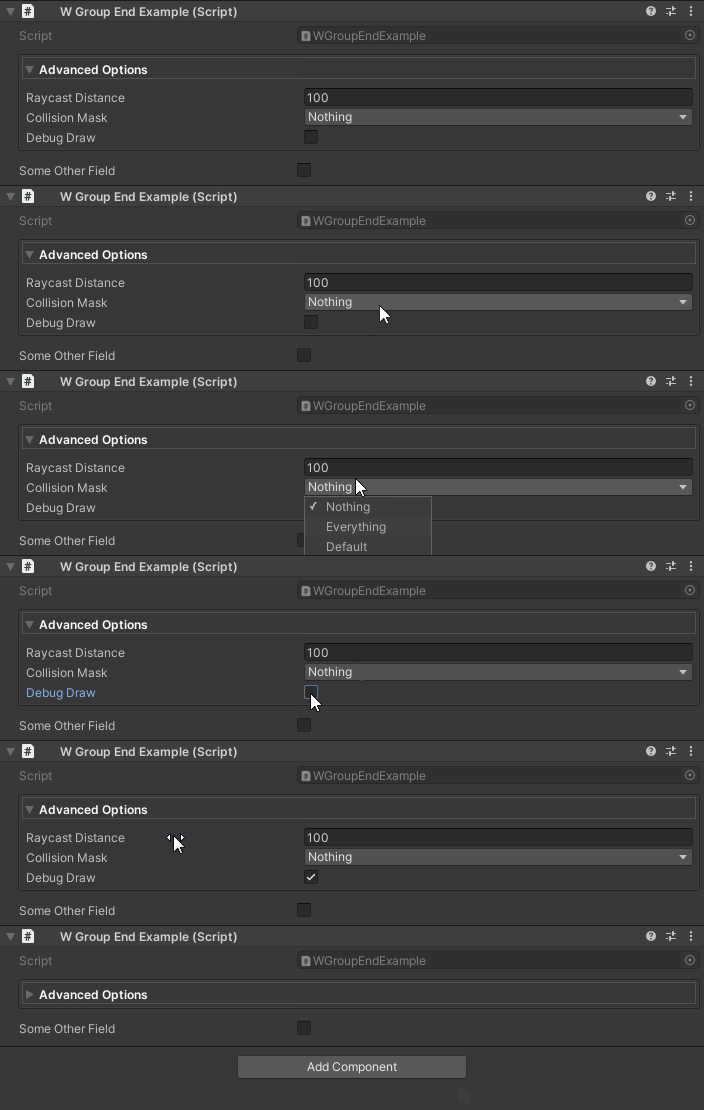
    [WGroup("advanced", "Advanced Options", collapsible: true, startCollapsed: true)]
    public float raycastDistance = 100f;  // In group
    public LayerMask collisionMask;       // In group (auto-included)

    [WGroupEnd("advanced")]               // debugDraw IS included, then group closes
    public bool debugDraw;                // In group (last field)

    public bool someOtherField;           // NOT in group (comes after WGroupEnd)
}
Animation Settings:
- Speed controlled by
UnityHelpersSettings.WGroupFoldoutSpeed(default: 2.0, range: 2.0-12.0) - Enable/disable via
UnityHelpersSettings.WGroupFoldoutTweenEnabled(default: enabled)
Configure in Project Settings → Unity Helpers or see Inspector Settings for details.
Hiding Headers
using UnityEngine;
using WallstopStudios.UnityHelpers.Core.Attributes;

public class HealthExample : MonoBehaviour
{
    [WGroup("stealth", "", hideHeader: true)]
    public float opacity = 1f;       // In group

    [WGroupEnd("stealth")]           // isVisible IS included, then group closes
    public bool isVisible = true;    // In group (last field)
}

Use Cases:
- Visual separation without labels
- Nested grouping styles
- Minimalist inspector layouts
Nested Groups
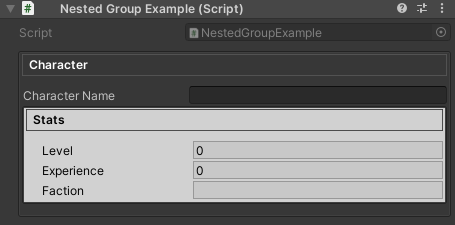
Use the parentGroup parameter to nest one group inside another. Nested groups render visually inside their parent’s box, with accumulated indentation and padding.
using UnityEngine;
using WallstopStudios.UnityHelpers.Core.Attributes;

public class NestedGroupExample : MonoBehaviour
{
    [WGroup("outer", "Character")]
    public string characterName;      // In outer group

    [WGroup("inner", "Stats", parentGroup: "outer")]
    public int level;                 // In inner group (nested in outer)
    public int experience;            // In inner group (auto-included)

    [WGroupEnd("inner")]              // faction IS included in BOTH groups
    [WGroupEnd("outer")]              // Then both groups close
    public string faction;            // In inner AND outer groups (last field)
}
How Nesting Works:
- Declare the parent group first with
[WGroup("outer", ...)] - Declare child group with
parentGroup: "outer"parameter - Child groups are rendered recursively inside parent content areas
- Indentation and padding accumulate for each nesting level
- Each group maintains its own foldout state when collapsible
Multiple Nesting Levels:
[WGroup("level1", "Level 1")]
public string field1;           // In level1 only

[WGroup("level2", "Level 2", parentGroup: "level1")]
public string field2;           // In level2 (nested in level1)

[WGroup("level3", "Level 3", parentGroup: "level2")]
public string field3;           // In level3 (nested in level2 → level1)
[WGroupEnd("level3")]           // field4 IS included in all three groups
[WGroupEnd("level2")]           // Then all groups close in order
[WGroupEnd("level1")]
public string field4;           // In level3, level2, AND level1 (last field)
Sibling Nested Groups:
[WGroup("parent", "Parent")]
public string parentField;      // In parent group

[WGroup("child1", "Child 1", parentGroup: "parent")]
public string child1Field;      // In child1 (nested in parent)

[WGroupEnd("child1")]           // child2Field starts NEW group, so closes child1 first
[WGroup("child2", "Child 2", parentGroup: "parent")]
public string child2Field;      // In child2 (nested in parent)

[WGroupEnd("child2")]           // afterParent IS included in child2 AND parent
[WGroupEnd("parent")]           // Then both groups close
public string afterParent;      // In child2 AND parent groups (last field)
Important Notes:
- Parent group must be declared before or on the same property as the child
- Circular references are detected and logged as warnings; affected groups are treated as top-level
- If
parentGroupreferences a non-existent group, the child is rendered as a top-level group
WGroupEnd Variants
⚠️ Key Point:
[WGroupEnd]must always be attached to a field. The field with[WGroupEnd]IS included in the group (via auto-include), and then the group closes.
1. End Specific Group
[WGroup("combat", "Combat Stats")]
public int health;              // In group
public int defense;             // In group (auto-included)
[WGroupEnd("combat")]           // stamina IS included, then "combat" closes
public int stamina;             // In group (last field)

public int unrelatedField;      // NOT in group
2. End Multiple Groups
When closing nested groups, stack multiple [WGroupEnd] attributes on the last field:
[WGroup("outer", "Outer")]
public int outerField;          // In outer

[WGroup("inner", "Inner", parentGroup: "outer")]
public int innerField;          // In inner (nested in outer)

[WGroupEnd("inner")]            // lastField IS included in both groups
[WGroupEnd("outer")]            // Then both groups close
public int lastField;           // In inner AND outer (last field)
3. Close All Active Groups
Omit the group name to close all currently active auto-include groups:
[WGroup("settings", autoIncludeCount: WGroupAttribute.InfiniteAutoInclude)]
public bool enableSound;        // In group
public float volume;            // In group (auto-included)
[WGroupEnd]                     // lastSetting IS included, then ALL groups close
public bool lastSetting;        // In group (last field)

public int outsideAllGroups;    // NOT in any group
Common Features
Auto-Include Constants
public class WGroupAttribute
{
    public const int InfiniteAutoInclude = -1;    // Include until WGroupEnd
    public const int UseGlobalAutoInclude = -2;   // Default: use project setting
}
Shared Group Names
using UnityEngine;
using WallstopStudios.UnityHelpers.Core.Attributes;

public class WGroupOutOfOrderExample : MonoBehaviour
{
    [WGroup("settings", "Game Settings", autoIncludeCount: 1)]
    public float masterVolume;
    public float musicVolume;

    public int numChannels;

    // Later in the same script...
    [WGroup("settings", autoIncludeCount: 1)] // Reuses "Game Settings" header, included in original group
    public float sfxVolume;

    [WGroupEnd("settings")]
    public bool enableSound;
}
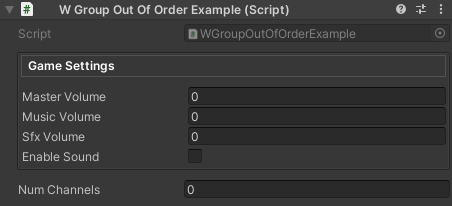
Note: Multiple [WGroup] attributes with the same groupName merge into a single group instance. This allows for logical grouping of related fields that may not be contiguous in code.
Configuration
Global Settings
All grouping attributes respect project-wide settings defined in UnityHelpersSettings:
Location: ProjectSettings/UnityHelpersSettings.asset
Settings:
WGroupAutoIncludeRowCount(default: 4) - Default fields to auto-includeWGroupStartCollapsed(default: true) - Whether collapsible groups start collapsedWGroupFoldoutTweenEnabled(default: true) - Enable expand/collapse animationsWGroupFoldoutSpeed(default: 2.0, range: 2-12) - Animation speed

Best Practices
1. Consistent Naming
// ✅ GOOD: Clear, descriptive group names
[WGroup("combat", "Combat Stats")]
[WGroup("movement", "Movement Settings")]
[WGroup("visuals", "Visual Effects")]

// ❌ BAD: Vague or inconsistent
[WGroup("group1", "Stuff")]
[WGroup("misc", "Things")]
2. Auto-Inclusion Strategy
// ✅ GOOD: Explicit count for small groups
[WGroup("position", "Position", autoIncludeCount: 3)]
public Vector3 position;        // Field 1: in group
public Quaternion rotation;     // Field 2: in group (auto-included)
[WGroupEnd("position")]         // scale IS included (field 3), then group closes
public Vector3 scale;           // Field 3: in group (last field)

// ✅ GOOD: Infinite for dynamic/long lists
[WGroup("inventory", "Items", autoIncludeCount: WGroupAttribute.InfiniteAutoInclude)]
public List<GameObject> weapons;      // In group
public List<GameObject> consumables;  // In group (auto-included)
// ... many more fields ...           // All auto-included
[WGroupEnd("inventory")]              // lastItem IS included, then group closes
public int lastItem;                  // In group (last field)

// ❌ BAD: Infinite without WGroupEnd (includes everything below!)
[WGroup("bad", autoIncludeCount: WGroupAttribute.InfiniteAutoInclude)]
public int field1;
public int field2;
// Oops, forgot [WGroupEnd]!
public string unrelatedField;  // Also included!
3. Collapsible vs. Always-Open
// ✅ GOOD: Always-visible for frequently accessed data
[WGroup("core", "Core Stats", collapsible: false)]
public float health;          // In group
[WGroupEnd("core")]           // energy IS included, then group closes
public float energy;          // In group (last field)

// ✅ GOOD: Collapsible for optional/advanced features
[WGroup("advanced", "Advanced", collapsible: true, startCollapsed: true)]
public float debugParameter;       // In group
[WGroupEnd("advanced")]            // experimentalFeature IS included, then closes
public bool experimentalFeature;   // In group (last field)

// ❌ BAD: Everything collapsible (hides important data)
[WGroup("important", "Critical Settings", collapsible: true, startCollapsed: true, autoIncludeCount: 0)]
public float maxHealth;  // Why hide this?
Examples
Example 1: RPG Character Stats
using System.Collections.Generic;
using UnityEngine;
using WallstopStudios.UnityHelpers.Core.Attributes;

public class RPGCharacter : MonoBehaviour
{
    [WGroup("identity", "Identity")]
    public string characterName;           // In identity group
    public Sprite portrait;                // In identity group (auto-included)
    public string className;               // In identity group (auto-included)

    [WGroupEnd("identity")]                // strength IS included, then identity closes
    [WGroup("attributes", "Base Attributes", collapsible: true)]
    public int strength = 10;              // In identity (last) AND starts attributes
    public int agility = 10;               // In attributes (auto-included)
    public int intelligence = 10;          // In attributes (auto-included)
    public int vitality = 10;              // In attributes (auto-included)

    [WGroupEnd("attributes")]              // maxHealth IS included, then attributes closes
    [WGroup("combat", "Combat Stats")]
    public float maxHealth = 100f;         // In attributes (last) AND starts combat
    public float attackPower = 25f;        // In combat (auto-included)
    public float defense = 15f;            // In combat (auto-included)

    [WGroupEnd("combat")]                  // learnedSkills IS included, then combat closes
    [WGroup("skills", "Skills", collapsible: true, startCollapsed: true)]
    public List<string> learnedSkills = new(); // In combat (last) AND starts skills

    [WGroupEnd("skills")]                  // skillPoints IS included, then skills closes
    public int skillPoints = 0;            // In skills (last field)
}
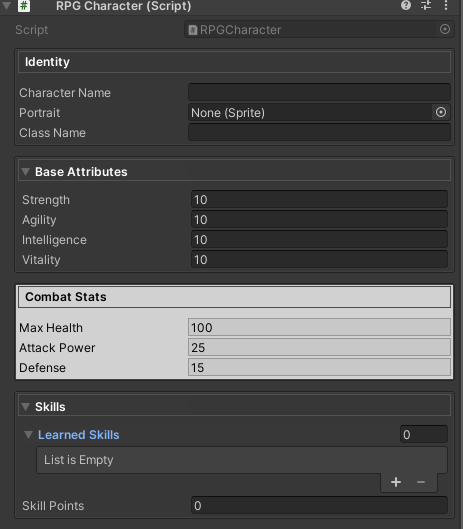
Example 2: Weapon Configuration
using UnityEngine;
using WallstopStudios.UnityHelpers.Core.Attributes;

public enum DamageType
{
    Physical,
    Magic,
}

public class WeaponConfig2 : MonoBehaviour
{
    [WGroup("basic", "Basic Info", autoIncludeCount: 2)]
    public string weaponName;              // Field 1: in basic group

    [WGroupEnd("basic")]                   // icon IS included (field 2), then closes
    public Sprite icon;                    // Field 2: in basic (last field)

    [WGroup("damage", "Damage", collapsible: true)]
    public float baseDamage = 10f;         // In damage group
    public float criticalMultiplier = 2f; // In damage (auto-included)

    [WGroupEnd("damage")]                  // damageType IS included, then closes
    public DamageType damageType;          // In damage (last field)

    [WGroup("effects", "Special Effects", collapsible: true, startCollapsed: true)]
    public ParticleSystem hitEffect;       // In effects group
    public AudioClip hitSound;             // In effects (auto-included)

    [WGroupEnd("effects")]                 // effectDuration IS included, then closes
    public float effectDuration = 1f;      // In effects (last field)

    [WGroup("advanced", "Advanced Settings", collapsible: true, startCollapsed: true)]
    public float projectileSpeed = 20f;    // In advanced group
    public LayerMask targetLayers;         // In advanced (auto-included)

    [WGroupEnd("advanced")]                // debugMode IS included, then closes
    public bool debugMode = false;         // In advanced (last field)
}
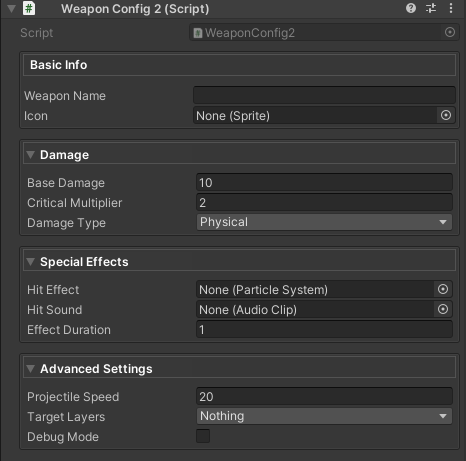
Example 3: Dynamic Form with Many Fields
using UnityEngine;
using WallstopStudios.UnityHelpers.Core.Attributes;

public class LevelSettings : MonoBehaviour
{
    [WGroup("general", "General", autoIncludeCount: 3)]
    public string levelName;               // Field 1: in general group
    public Sprite thumbnail;               // Field 2: in general (auto-included)

    [WGroupEnd("general")]                 // description IS included (field 3), then closes
    public string description;             // Field 3: in general (last field)

    [WGroup(
        "environment",
        "Environment",
        collapsible: true,
        startCollapsed: true,
        autoIncludeCount: WGroupAttribute.InfiniteAutoInclude
    )]
    public Color skyColor;                 // In environment group
    public Color fogColor;                 // In environment (auto-included)
    public float fogDensity;               // In environment (auto-included)
    public Light directionalLight;         // In environment (auto-included)
    public Cubemap skybox;                 // In environment (auto-included)
    public float ambientIntensity;         // In environment (auto-included)

    [WGroupEnd("environment")]             // sunIntensity IS included, then closes
    public float sunIntensity;             // In environment (last field)

    [WGroup("gameplay", "Gameplay Rules", collapsible: true, startCollapsed: false)]
    public int enemyCount = 10;            // In gameplay group
    public float difficultyMultiplier = 1f; // In gameplay (auto-included)

    [WGroupEnd("gameplay")]                // allowRespawns IS included, then closes
    public bool allowRespawns = true;      // In gameplay (last field)

    [WGroup("debug", "Debug Options", collapsible: true, startCollapsed: true)]
    public bool godMode = false;           // In debug group
    public bool unlimitedAmmo = false;     // In debug (auto-included)

    [WGroupEnd("debug")]                   // showHitboxes IS included, then closes
    public bool showHitboxes = false;      // In debug (last field)
}
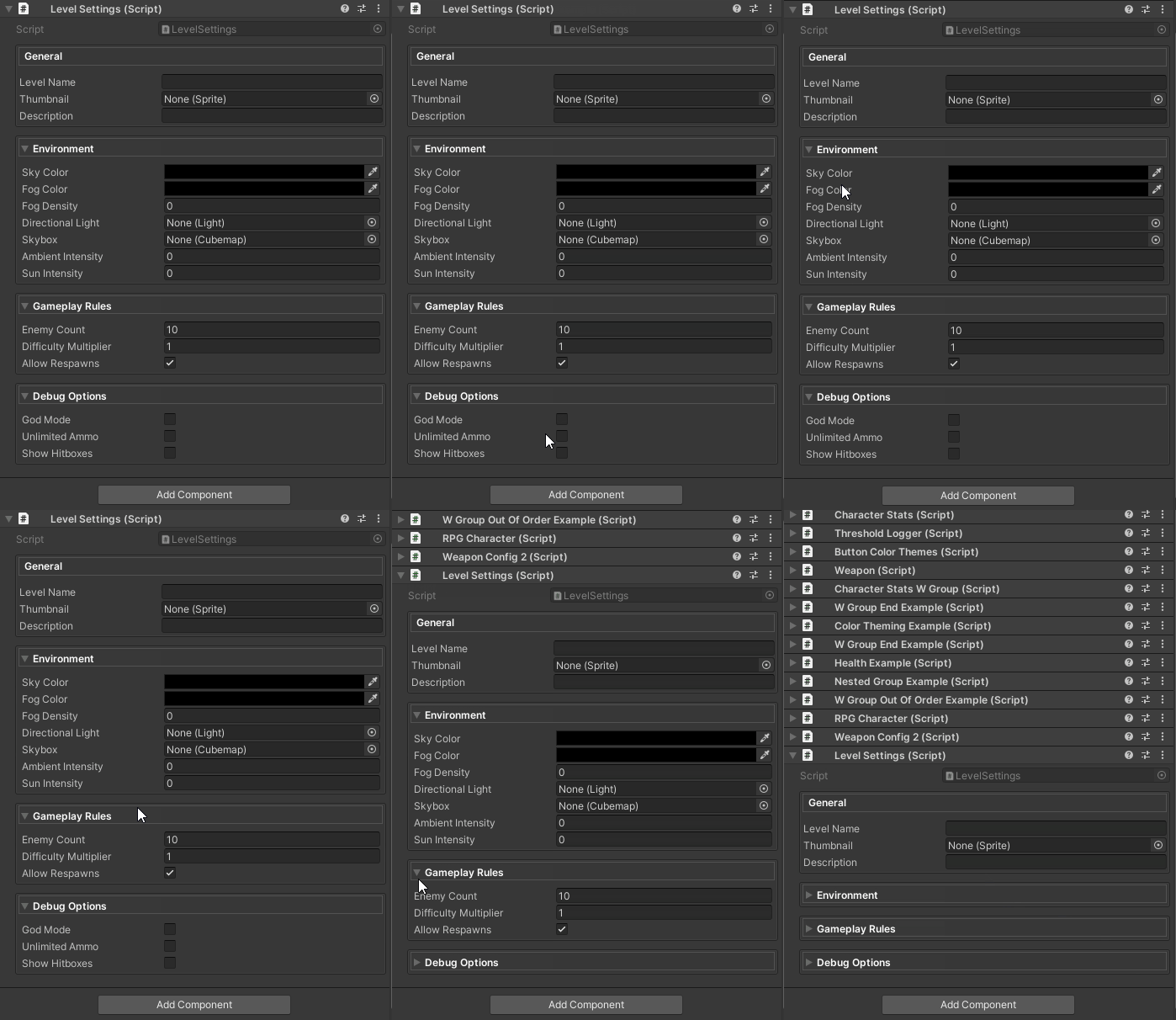
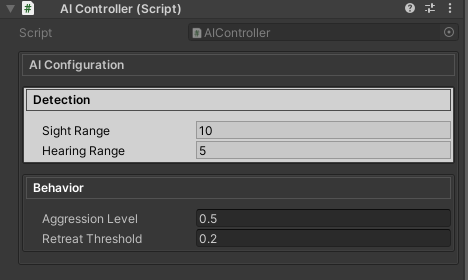
Example 4: Nested Configuration
using UnityEngine;
using WallstopStudios.UnityHelpers.Core.Attributes;

public class AIController : MonoBehaviour
{
    [WGroup("outer", "AI Configuration")]
    [WGroup("detection", "Detection", parentGroup: "outer")]
    public float sightRange = 10f;         // In detection (nested in outer)

    [WGroupEnd("detection")]               // hearingRange IS included, then detection closes
    public float hearingRange = 5f;        // In detection (last) AND outer (auto-included)

    [WGroup("behavior", "Behavior", parentGroup: "outer")]
    public float aggressionLevel = 0.5f;   // In behavior (nested in outer)

    [WGroupEnd("behavior")]                // retreatThreshold IS included in both
    [WGroupEnd("outer")]                   // Then both groups close
    public float retreatThreshold = 0.2f;  // In behavior (last) AND outer (last)
}
Troubleshooting
Group Not Appearing
Problem: Fields not showing in a group
Solutions:
- Check
autoIncludeCount- make sure it includes all desired fields - Verify
WGroupEndplacement - the field WITHWGroupEndIS included, fields AFTER are excluded - Ensure group names match between
WGroupandWGroupEnd
// ❌ WRONG: Count too low (only 2 fields included, but intelligence has WGroupEnd)
[WGroup("stats", autoIncludeCount: 2)]
public int strength;      // Field 1: in group
public int agility;       // Field 2: in group (auto-included)
[WGroupEnd("stats")]      // intelligence would be field 3, but count is only 2!
public int intelligence;  // NOT included - auto-include budget exhausted before WGroupEnd


// ✅ CORRECT: Increase count to include the WGroupEnd field
[WGroup("stats", autoIncludeCount: 3)]
public int strength;      // Field 1: in group
public int agility;       // Field 2: in group (auto-included)
[WGroupEnd("stats")]      // intelligence IS included (field 3), then group closes
public int intelligence;  // Field 3: in group (last field)
Animation Not Working
Problem: Groups don’t animate when collapsed/expanded
Solutions:
- Check
UnityHelpersSettings.WGroupFoldoutTweenEnabledistrue - Ensure
collapsible: trueis set for WGroup - Verify
WGroupFoldoutSpeedisn’t set too low (minimum is 2.0) - Open Project Settings → Unity Helpers to review settings
Compatibility
WGroup operates at the inspector level, so existing property drawers and custom inspectors continue to work. Groups appear in the order of their first declaration, and multi-object editing remains fully supported.
See Also
- Inspector Overview - Complete inspector features overview
- Inspector Buttons - WButton for method invocation
- Inspector Settings - Configuration reference
- Editor Tools Guide - Other editor utilities
Next Steps:
- Try grouping your existing scripts with
[WGroup] - Explore
[WButton]to add method buttons to your groups