Unity Helpers
Treasure chest of Unity developer tools. Professional inspector tooling, high-performance utilities, spatial queries, and 20+ editor tools.
Inspector Inline Editor (WInLineEditor)
Edit nested objects without losing context.
The [WInLineEditor] attribute embeds the inspector for object references (ScriptableObjects, Materials, Components, Textures, etc.) directly below the field. No more clicking through to edit configuration — everything stays in view.
Table of Contents
Basic Usage
using UnityEngine;
using WallstopStudios.UnityHelpers.Core.Attributes;

public class AbilityConfig : ScriptableObject
{
    public string displayName;
    public float cooldown;
    public Sprite icon;
}

public class Character : MonoBehaviour
{
    [WInLineEditor]
    public AbilityConfig primaryAbility;  // Editable inline!
}
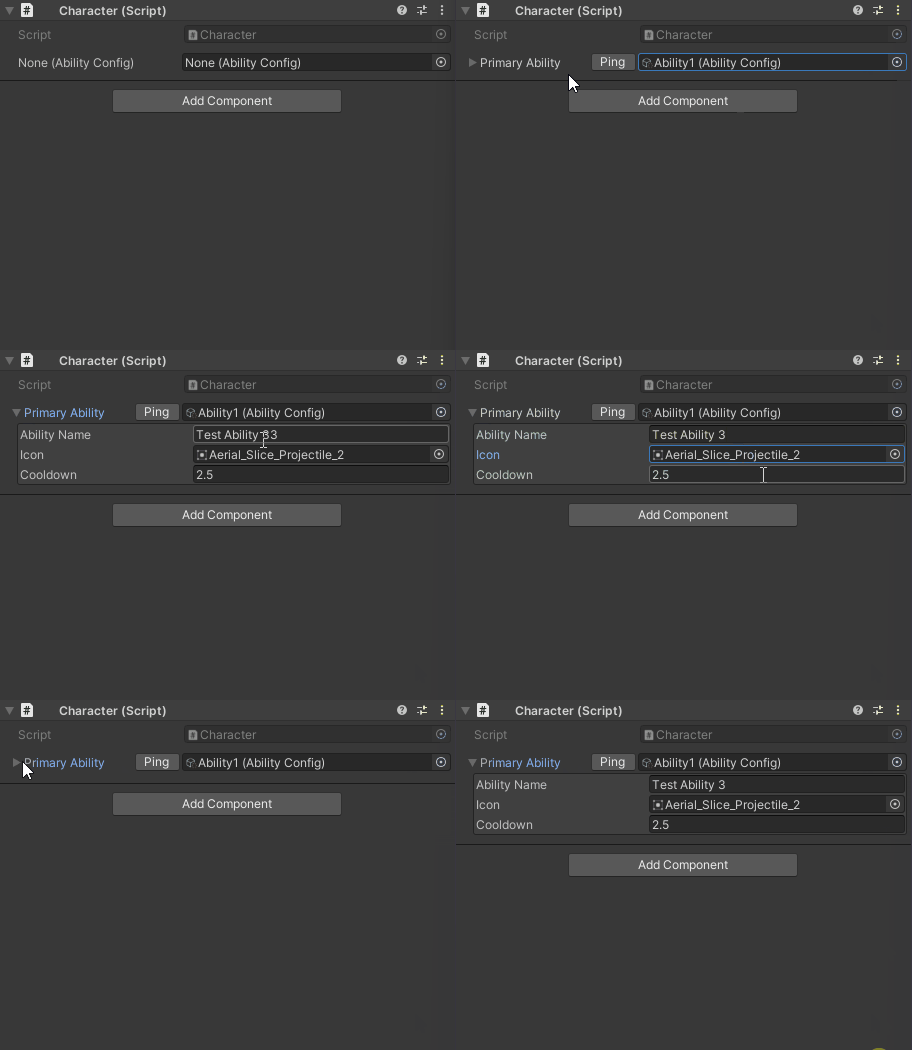
Visual Reference
WInLineEditor with embedded inspector for a ScriptableObject reference
Display Modes
Control how the inline editor appears using WInLineEditorMode:
| Mode | Behavior |
|---|---|
AlwaysExpanded |
Always shows the inline inspector (no foldout) |
FoldoutExpanded |
Shows a foldout that starts expanded |
FoldoutCollapsed |
Shows a foldout that starts collapsed (default) |
using UnityEngine;
using WallstopStudios.UnityHelpers.Core.Attributes;

public class WInlineEditorModes : MonoBehaviour
{
    // Always visible
    [WInLineEditor(WInLineEditorMode.AlwaysExpanded)]
    public AbilityConfig alwaysVisibleConfig;

    // Foldout, starts open
    [WInLineEditor(WInLineEditorMode.FoldoutExpanded)]
    public AbilityConfig expandedByDefault;

    // Foldout, starts closed (default behavior)
    [WInLineEditor(WInLineEditorMode.FoldoutCollapsed)]
    public AbilityConfig collapsedByDefault;

    // Uses global setting from Unity Helpers Settings
    [WInLineEditor]
    public AbilityConfig usesGlobalSetting;
}
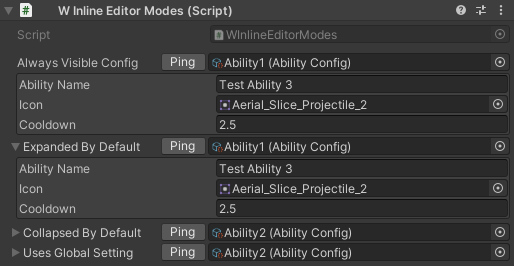
Visual Reference
Comparison of AlwaysExpanded, FoldoutExpanded, and FoldoutCollapsed modes
Configuration Options
Fine-tune the presentation with constructor parameters:
[WInLineEditor(
    WInLineEditorMode.FoldoutCollapsed,  // Display mode
    inspectorHeight: 200f,                // Vertical space (min 160)
    drawObjectField: true,                // Show object picker
    drawHeader: true,                     // Show bold header with ping button
    drawPreview: false,                   // Render preview area
    previewHeight: 64f,                   // Preview area height
    enableScrolling: true,                // Wrap in scroll view
    minInspectorWidth: 520f               // Horizontal scroll threshold (0 = disabled)
)]
public AbilityConfig detailedConfig;
Parameter Reference
| Parameter | Default | Description |
|---|---|---|
inspectorHeight |
200 | Vertical space for inspector body (minimum 160) |
drawObjectField |
true | Show the object picker field next to label |
drawHeader |
true | Show bold header with ping button |
drawPreview |
false | Render preview area (if target editor supports it) |
previewHeight |
64 | Height of preview area when enabled |
enableScrolling |
true | Wrap inspector body in scroll view |
minInspectorWidth |
520 | Width threshold for horizontal scrollbar (0 = disabled) |
Examples with Options
using UnityEngine;
using WallstopStudios.UnityHelpers.Core.Attributes;
using WallstopStudios.UnityHelpers.Utils;

public class AbilityDatabase : ScriptableObjectSingleton<AbilityDatabase>
{
    // Compact: no header, no object field, fixed height
    [WInLineEditor(
        WInLineEditorMode.AlwaysExpanded,
        inspectorHeight: 180f,
        drawObjectField: false,
        drawHeader: false
    )]
    public AbilityConfig compactView;

    // Full featured: preview, scrolling, header with ping
    [WInLineEditor(
        WInLineEditorMode.FoldoutExpanded,
        inspectorHeight: 300f,
        drawPreview: true,
        previewHeight: 80f,
        enableScrolling: true
    )]
    public Sprite abilityIcon;
}
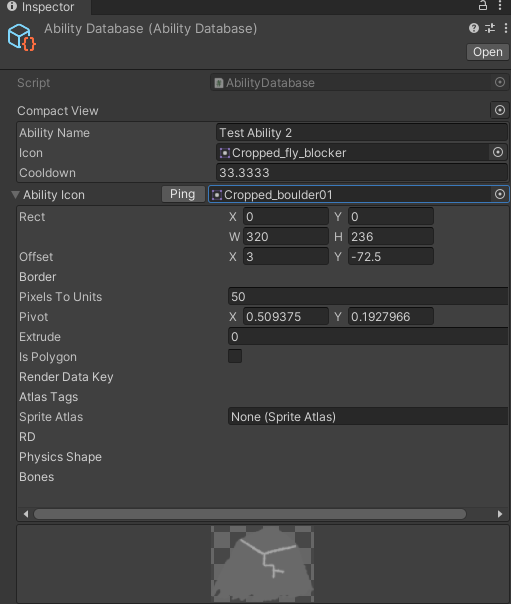
Visual Reference
Different configuration combinations showing compact vs full-featured layouts
Animation Settings
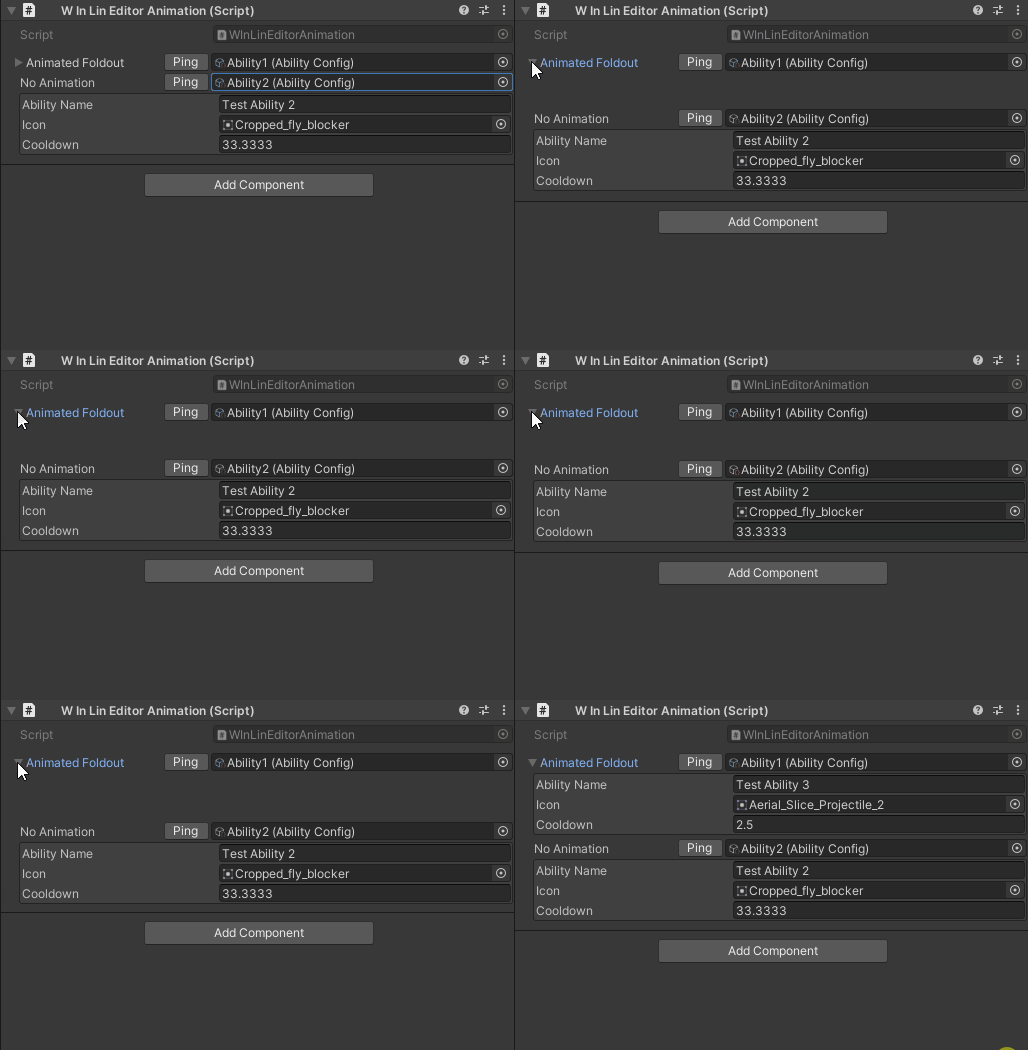
Foldout animations create smooth expand/collapse transitions. Configure globally via Edit > Project Settings > Unity Helpers:
| Setting | Default | Description |
|---|---|---|
InlineEditorFoldoutTweenEnabled |
true | Enable/disable smooth animations |
InlineEditorFoldoutSpeed |
2.0 | Animation speed (2.0 - 12.0) |
using UnityEngine;
using WallstopStudios.UnityHelpers.Core.Attributes;

public class WInLineEditorAnimation : MonoBehaviour
{
    // Animation applies to foldout modes only
    [WInLineEditor(WInLineEditorMode.FoldoutCollapsed)] // Animated
    public AbilityConfig animatedFoldout;

    [WInLineEditor(WInLineEditorMode.AlwaysExpanded)] // No animation
    public AbilityConfig noAnimation;
}
Visual Reference
Smooth expand/collapse animation with configurable speed
See also: Inspector Settings Reference for complete settings documentation.
Supported Types
WInLineEditor works with any Unity Object reference:
- ScriptableObjects — Configuration assets, data containers
- Materials — Shader properties inline
- Textures — Texture import settings
- Components — Other MonoBehaviours on GameObjects
- Any UnityEngine.Object — Custom asset types
public class VisualConfig : MonoBehaviour
{
    [WInLineEditor]
    public Material sharedMaterial;

    [WInLineEditor(drawPreview: true, previewHeight: 128f)]
    public Texture2D backgroundTexture;

    [WInLineEditor]
    public AudioClip soundEffect;
}
Features
- Bespoke implementation — No Odin dependency, tailored for common workflows
- Native editor reuse — Respects custom inspectors, validation, and undo
- Optional scroll view — Keeps large inspectors usable without stealing space
- Preview support — For assets that implement
HasPreviewGUI - Ping button — Quick navigation to assets in the Project window
- Smooth animations — Configurable expand/collapse transitions
Best Practices
1. Use Foldouts for Optional Content
// Collapsed by default - keeps inspector clean
[WInLineEditor(WInLineEditorMode.FoldoutCollapsed)]
public AdvancedSettings advancedSettings;

// Always visible for frequently-edited config
[WInLineEditor(WInLineEditorMode.AlwaysExpanded)]
public CoreSettings coreSettings;
2. Adjust Height for Content Size
// Short config - minimal height
[WInLineEditor(inspectorHeight: 160f)]
public SimpleConfig simple;

// Complex config - more room
[WInLineEditor(inspectorHeight: 400f, enableScrolling: true)]
public ComplexConfig complex;
3. Combine with WGroup for Organization
[WGroup("Visual Settings")]
[WInLineEditor]
public Material material;      // In group

[WInLineEditor]
[WGroupEnd]                    // texture IS included, then group closes
public Texture2D texture;      // In group (last field)

[WGroup("Audio Settings")]
[WInLineEditor]
[WGroupEnd]                    // clip IS included, then group closes
public AudioClip clip;         // In group (last field)
4. Disable Object Field for Embedded Data
// When the reference shouldn't change, hide the picker
[WInLineEditor(drawObjectField: false)]
public FixedConfiguration config;
Examples
Example 1: Character Ability System
using UnityEngine;
using WallstopStudios.UnityHelpers.Core.Attributes;

[CreateAssetMenu(menuName = "Game/Ability Config")]
public class AbilityConfig : ScriptableObject
{
    public string displayName;
    public Sprite icon;
    public float cooldown = 1f;
    public float damage = 10f;
    public GameObject effectPrefab;
}

public class CharacterAbilities : MonoBehaviour
{
    [WGroup("Primary Abilities")]
    [WInLineEditor(WInLineEditorMode.FoldoutExpanded)]
    public AbilityConfig primaryAttack;   // In group

    [WInLineEditor(WInLineEditorMode.FoldoutCollapsed)]
    [WGroupEnd]                           // secondaryAttack IS included, then closes
    public AbilityConfig secondaryAttack; // In group (last field)

    [WGroup("Ultimate")]
    [WInLineEditor(WInLineEditorMode.FoldoutCollapsed, inspectorHeight: 250f)]
    [WGroupEnd]                           // ultimate IS included, then closes
    public AbilityConfig ultimate;        // In group (last field)
}
Example 2: Material Editor
using UnityEngine;
using WallstopStudios.UnityHelpers.Core.Attributes;

public class VisualEffectController : MonoBehaviour
{
    [WInLineEditor(
        WInLineEditorMode.FoldoutExpanded,
        inspectorHeight: 300f,
        drawPreview: true,
        previewHeight: 100f)]
    public Material effectMaterial;

    [WInLineEditor(drawPreview: true, previewHeight: 64f)]
    public Texture2D noiseTexture;
}
Example 3: Audio Configuration
using UnityEngine;
using WallstopStudios.UnityHelpers.Core.Attributes;

[CreateAssetMenu(menuName = "Audio/Sound Config")]
public class SoundConfig : ScriptableObject
{
    public AudioClip clip;
    [Range(0f, 1f)] public float volume = 1f;
    [Range(0.5f, 2f)] public float pitch = 1f;
    public bool loop;
}

public class AudioManager : MonoBehaviour
{
    [WInLineEditor(WInLineEditorMode.FoldoutCollapsed)]
    public SoundConfig backgroundMusic;

    [WInLineEditor(WInLineEditorMode.FoldoutCollapsed)]
    public SoundConfig buttonClick;

    [WInLineEditor(WInLineEditorMode.FoldoutCollapsed)]
    public SoundConfig victorySound;
}
See Also
- Inspector Overview - Complete inspector features overview
- Inspector Grouping Attributes - WGroup layouts
- Inspector Settings - Global configuration
Next Steps:
- Add
[WInLineEditor]to ScriptableObject references for inline editing - Configure global defaults in Unity Helpers Settings
- Combine with
[WGroup]for organized inspector layouts